Manual WiFi Sensor Setup
The easiest way to connect your Aqua-Scope device to the internet and your app is through the app itself, which transfers the required credentials via a Bluetooth connection. If the Bluetooth setup does not work, you can also set up the sensor manually.
The sensor requires a standard 2.4 GHz WiFi network. 5 GHz networks are not supported.
Quick Overview
| Step | Action |
|---|---|
| 1 | Connect to the "Scope" WiFi network |
| 2 | Open browser → scope.local or 192.168.4.1 |
| 3 | Enter home SSID (2.4 GHz), WiFi password & email |
| 4 | Submit → Redirect to app → Device appears |
Step 1 — Connect to the Sensor WiFi
- Open the WiFi settings on your phone or PC.
- Select the SSID "Scope" from the list of available networks.
- Press Connect. Your phone/PC is now connected directly to the sensor's web server.
Check whether the sensor is blinking red/green — this indicates the factory default state in which the sensor WiFi is active.
Step 2 — Open the Configuration Page in the Browser
- Open any browser on your phone or PC (Chrome, Safari, Firefox, Edge, etc.).
- Enter one of the following addresses in the address bar:
http://scope.localhttp://192.168.4.1
- The sensor's configuration page is displayed.
Step 3 — Select Home WiFi & Enter Credentials
- On the configuration page, you will see a list of WiFi networks detected by the sensor.
- Click on your home SSID from the list.
- Enter the password for your home WiFi network.
- Enter your email address for registration / device assignment.
Only 2.4 GHz WiFi networks are displayed. The list may differ from the networks shown on your phone/PC.
Optionally, you can enter an MQTT server under "Advanced". Recommendation: set up MQTT later in the app and just connect the WiFi for now.
Step 4 — Save & View Device in the App
- Click "Submit".
- The sensor connects to your home WiFi network.
- The sensor disconnects from the "Scope" WiFi and attempts to connect to your home WiFi (2.4 GHz).
- Success: You are automatically redirected to app.aqua-scope.com. Your device appears in the app.
- Failure: The WiFi setup dialog is displayed again. Check the SSID and password and try again.
Install the App on iPhone
After being redirected to the app page, you can install the Aqua-Scope PWA directly on your iPhone:
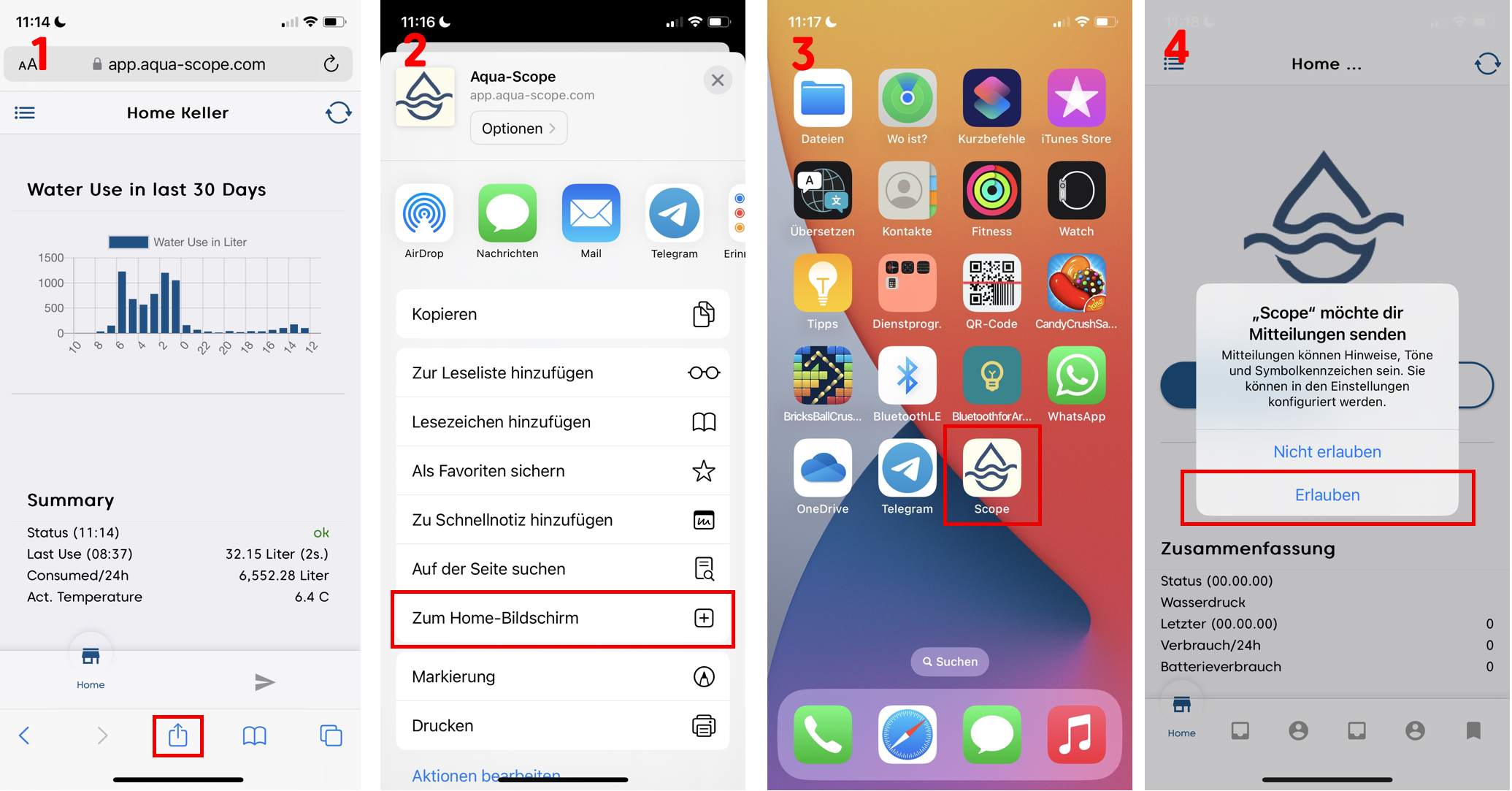
- In Safari: tap the Share icon → select "Add to Home Screen"
- The app appears as an icon on your home screen
- Allow notifications to receive alarm alerts
Detailed instructions for all platforms: Install App